




Create and Use Custom Agents
Create and Use Custom Agents
Custom Agents are personal AI agents you create to handle parts of your workflow, so you can skip manual work and get hours back in your day. You write natural-language instructions that tell an agent what to do, and you can chat with an agent or Copilot into its account at any time.
Custom Agents are currently in Beta, so they may not be available on every account yet.
Who can use Custom Agents
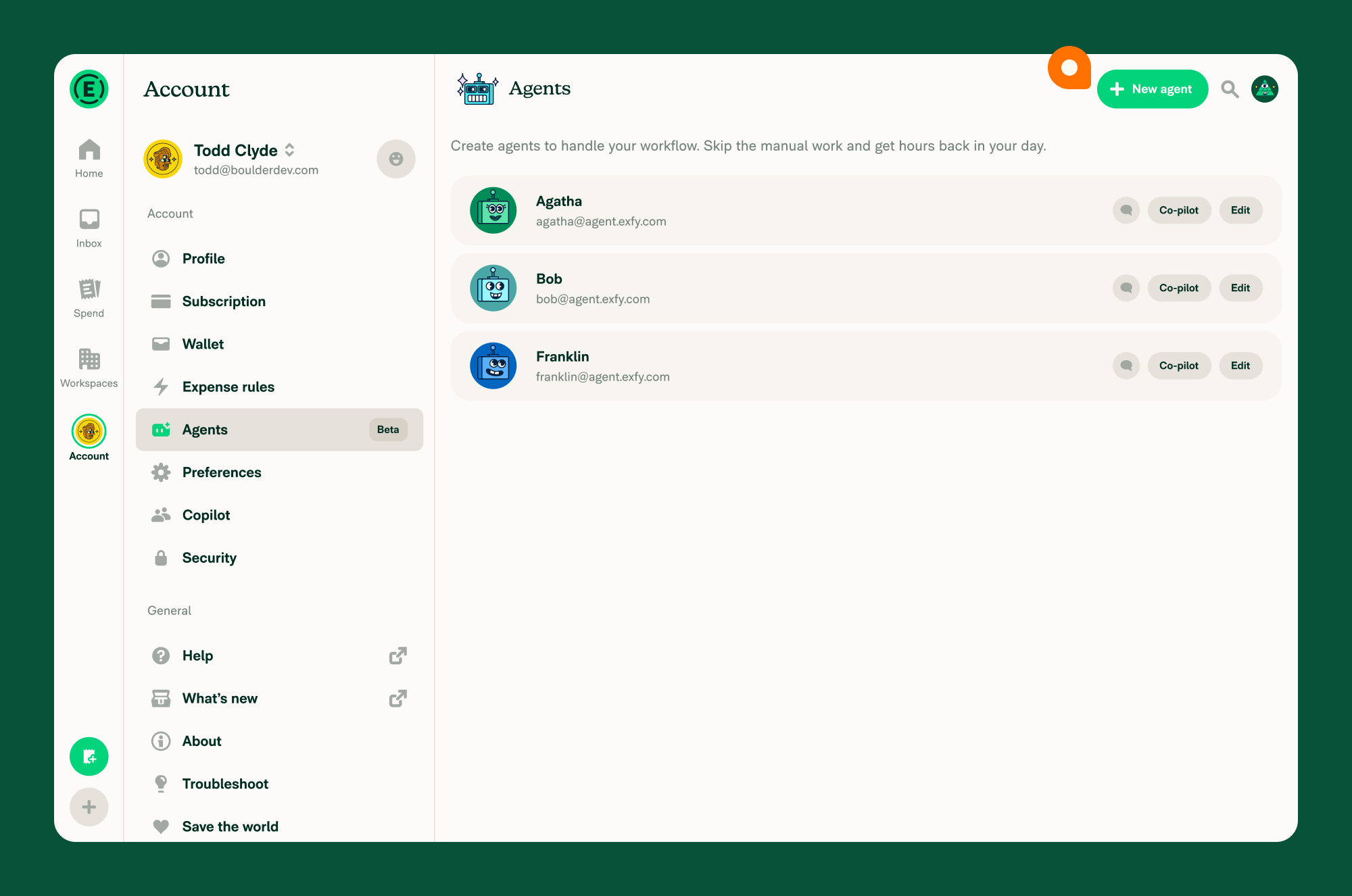
Custom Agents are a personal, account-level feature. When the feature is available to you, an Agents option appears in your Account settings with a Beta badge.
If you don’t see Agents in your Account settings, the Beta isn’t enabled on your account yet.
How to create a Custom Agent
- In the navigation tabs (on the left on web, on the bottom on mobile), click Account > Agents.
- Click New agent.
- In the Agent name field, enter a name for the agent.
- Click Write custom instructions and describe what you want the agent to do.
- (Optional) Click Edit avatar to set an image for the agent.
- Click Create agent.
How to write instructions for a Custom Agent
Instructions are written in natural language. Describe the behavior you want, and the agent follows those instructions when handling your work. Clear, specific instructions produce more predictable results.
For example, your instructions might tell an agent to:
- Reject expenses that are for gambling, movies, or other obvious non-business reasons.
- Remind you to always include a receipt image that makes the tip clear.
- Approve a report if it’s very similar to previous reports from the same user.
- Reject reports with more than $500 in travel expenses.
You can update an agent’s instructions at any time. See how to edit a Custom Agent.
How to chat with a Custom Agent
- In the navigation tabs (on the left on web, on the bottom on mobile), click Account > Agents.
- Find the agent you want to message, then click the chat icon on the agent’s row.
You can also open an agent and click Chat with agent.
How to Copilot into a Custom Agent’s account
Copiloting into an agent lets you act on its behalf.
- In the navigation tabs (on the left on web, on the bottom on mobile), click Account > Agents.
- Find the agent you want to act as, then click Copilot on the agent’s row.
You can also open an agent and click Copilot into account.
How to edit a Custom Agent
- In the navigation tabs (on the left on web, on the bottom on mobile), click Account > Agents.
- Find the agent you want to change, then click Edit.
- Update the Agent name, Write custom instructions, or avatar as needed.
How to delete a Custom Agent
- In the navigation tabs (on the left on web, on the bottom on mobile), click Account > Agents.
- Find the agent you want to remove, then click Edit.
- Click Delete agent.
- Click Delete agent again to confirm.
Deleting an agent can’t be undone.
FAQ
Why can’t I see Agents in my Account settings?
Custom Agents are in Beta and may not be enabled on your account yet. When the feature is available, an Agents option appears in your Account settings with a Beta badge.
Can a Custom Agent make mistakes?
Yes. Custom Agents follow natural-language instructions and are powered by AI, so they may occasionally behave unexpectedly. Write clear, specific instructions and review what an agent does.
How do I stop a Custom Agent from handling my workflow?
Delete the agent. See how to delete a Custom Agent.


